Introduction
Many Android TV and Fire TV devices include far less usable storage than users expect. The operating system, preinstalled apps, streaming app cache, update files, APK installers, and copied media all share the same limited internal space. When the device gets too full, apps may update poorly, the launcher can slow down, and playback apps may fail to cache data properly.
A safe cleanup starts with visibility. Before deleting anything, check the system storage screen and identify the largest categories. Then use a file manager to inspect Downloads, APK folders, transfer folders, videos, and archives. Removing files you recognize is safer than using a generic cleaner that may not understand what matters on your device.
Related storage cleanup video
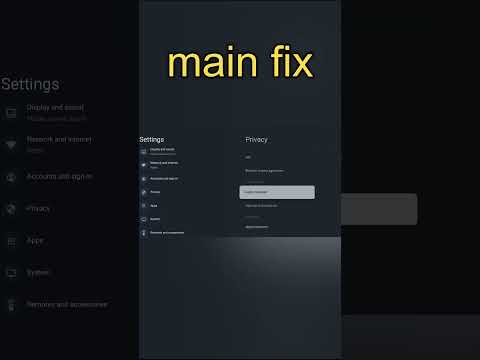
Android TV Storage Fix Short
Watch the dedicated video page for the visual cleanup walkthrough, then return to this guide for the full step-by-step process.
Step-by-step cleanup process
- Open Settings and check storage usage by category or app. Note the largest items before deleting anything.
- Restart the device once. This clears temporary state and helps separate real storage problems from temporary glitches.
- Use Orvexa Files or another file manager to review Downloads, APKs, Movies, Music, Documents, and transfer folders.
- Delete old APK installers, failed downloads, duplicate videos, and temporary ZIP files you can identify.
- Clear cache for large streaming or browser apps. Avoid clearing app data unless you are ready to sign in again.
- Uninstall apps you no longer use, especially large games or streaming apps with offline downloads.
- Move personal videos, music, and documents to USB storage or another device when possible.
Common mistakes
Clearing app data first
App data may include logins, playlists, saved state, downloads, and preferences.
Deleting unknown folders
Unknown folders can belong to apps. Identify them before removal.
Keeping every APK
Old installers pile up quickly. Keep only labeled backups you actually need.
Ignoring media size
One long video can use more storage than many utility apps combined.
Safety recommendations
Back up important personal files before major cleanup. If a folder contains family photos, documents, or exported playlists, copy it to another device before deleting. Keep at least several hundred megabytes free on small devices, and more if your device receives frequent updates. If the TV supports USB storage, use it for large personal media rather than internal storage.
Do not install a cleaner that asks for broad permissions and promises instant performance. Manual review is slower, but it teaches you what fills the device and prevents accidental data loss.
Troubleshooting
Storage is still full after deleting files
Restart the device, check whether deleted files moved to a trash folder, clear cache for large apps, and uninstall unused apps.
Updates still fail
Free more internal storage, not just USB storage. Some updates require internal space even when media is stored externally.
Files keep returning
A browser, transfer app, or streaming app may be downloading them again. Check app settings and offline download folders.
Frequently asked questions
How much free storage should Android TV have?
More is better, but try to keep at least several hundred megabytes free on small devices and around 1 GB when possible.
Is clearing cache safe?
Usually yes. Cache is temporary, but apps may load more slowly the next time they rebuild it.
Is clearing app data safe?
Only if you accept losing app settings, logins, downloads, playlists, or saved state for that app.
Can USB storage fix low internal storage?
USB helps move personal media off the device, but app updates and system cache still need internal space.
Summary and next steps
Start with storage visibility, delete only what you recognize, move large personal media away from internal storage, and keep cache clearing selective. Next, watch the storage fix video or read how to safely delete junk files for deeper cleanup habits.