Introduction
Android TV devices often feel slower over time because small problems stack together. A few unused apps stay installed, streaming cache grows, APK installers remain in Downloads, the launcher loads more recommendations, and Wi-Fi quality changes as more devices join the network. The fix is not one magic setting. The fix is a calm sequence of checks that removes pressure from storage, memory, and network resources.
Avoid risky performance advice that asks you to disable random system services or change developer options you do not understand. Most users get better results from basic maintenance: restart the device, close background apps, uninstall what you do not use, keep internal storage free, and use focused lightweight tools for specific jobs.
Related background apps video
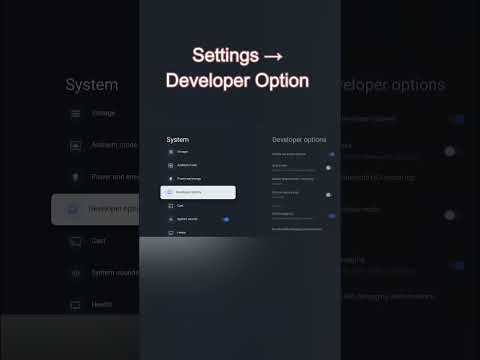
Stop Background Apps on Android TV Short
Use the video for a quick first fix, then follow the broader checklist below if the device remains slow.
Step-by-step performance checklist
- Restart the TV or streaming box to clear temporary memory pressure.
- Close apps you opened recently, especially streaming, browser, downloader, and media apps.
- Check internal storage. Remove old APKs, failed downloads, duplicate media, and temporary archives.
- Uninstall apps you have not used recently. Disable recommendations or autoplay previews when your launcher allows it.
- Update important apps and system firmware when updates are available from your device maker.
- Test Wi-Fi quality. Use 5 GHz near the router, 2.4 GHz for range, or Ethernet if your device supports it.
- Use lightweight tools for simple jobs, such as a focused file manager for storage review.
Common mistakes
Factory resetting too soon
A reset is disruptive. Try storage, app, cache, and network fixes first.
Installing more boosters
Extra optimizer apps can add background load instead of reducing it.
Ignoring storage
Low internal space can make unrelated apps feel slow.
Blaming the app first
If every app is slow, the device, storage, network, or launcher is more likely the issue.
Safety recommendations
Change one thing at a time so you know what helped. If you clear cache, do it for the problem app first rather than every app. Do not clear app data unless you are ready to lose that app's settings. If you experiment with developer options, write down the original value and reverse it if the device behaves worse.
For shared TVs, keep the app list simple. Install only the apps the household actually uses, and keep file downloads organized. A device that doubles as a permanent download archive will eventually slow down again.
Troubleshooting
Only one app is slow
Clear that app cache, check for updates, restart it, and confirm the app has enough storage for its own data.
All apps are slow
Focus on internal storage, background apps, launcher recommendations, firmware updates, and a full device restart.
Streaming buffers but menus are fast
The main issue may be network quality, stream bitrate, or the streaming service rather than device performance.
Frequently asked questions
Does closing background apps really help Android TV?
It can help when memory pressure is temporary. If the device remains slow, check storage, updates, and network quality.
Should I use task killer apps?
Usually no. Android already manages memory, and aggressive task killers can make apps relaunch more often.
Can low storage affect performance?
Yes. Low internal storage can interfere with updates, cache, media indexing, and normal app behavior.
When should I factory reset?
Use factory reset as a last resort after backup, targeted cleanup, app updates, and troubleshooting have failed.
Summary and next steps
Start with reversible fixes: restart, close background apps, free storage, uninstall unused apps, and test the network. Next, watch the background apps video or open the buffering and storage guide if playback is the main problem.